
Share Article
Spread practical knowledge with your network
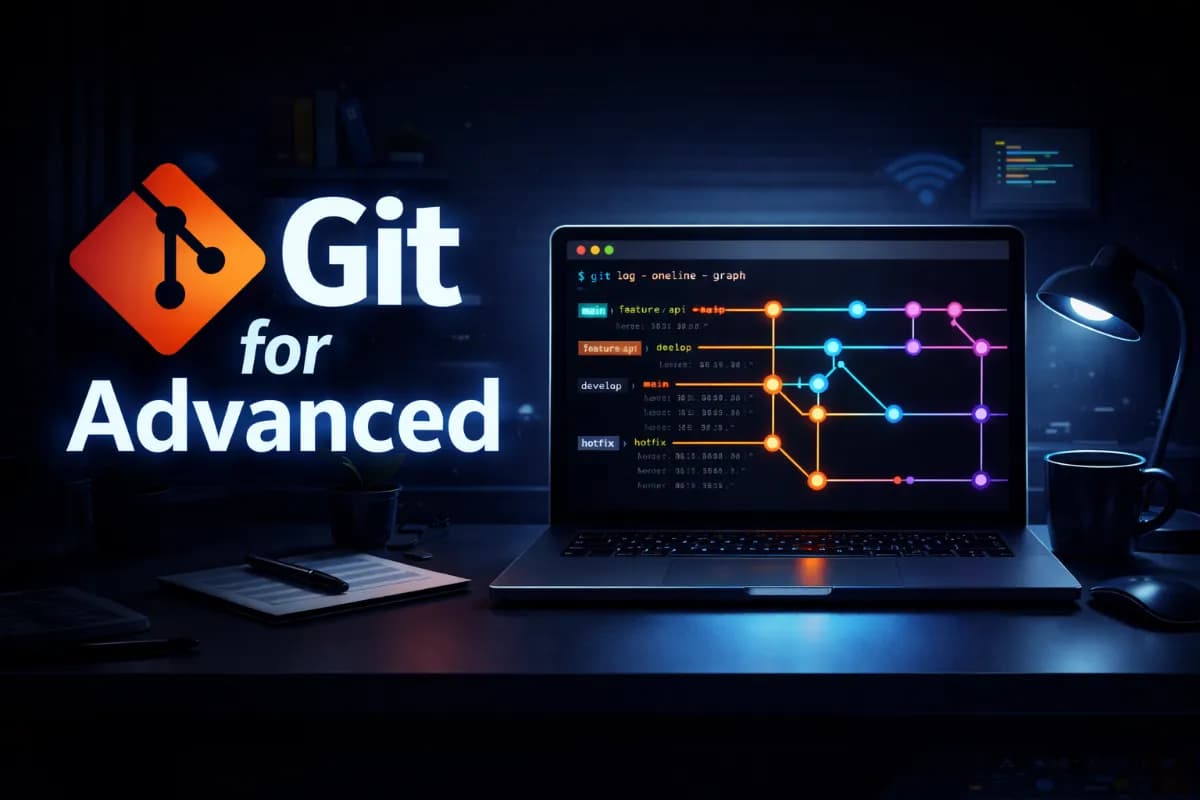
Advanced Git Commands & Workflows for Senior Developers
Introduction: Git in the Real World
In mature engineering teams, Git isn’t just about committing code—it’s about safely coordinating dozens of developers, shipping reliably, debugging regressions, and maintaining velocity at scale.
This guide goes beyond basics to cover Git internals, advanced commands, and battle-tested workflows used in real production systems.
- Many commands below can rewrite history or delete data.
- Always make sure your work is committed or backed up before using
reset --hard,clean, or rebasing shared branches.
1. Advanced Git Concepts
Git Internals: HEAD, Index, Objects
Git is a content-addressable filesystem.
-
HEAD → Pointer to the current commit (usually a branch)
-
Index (Staging Area) → Snapshot of what will go into the next commit
-
Objects
- Blob → File content
- Tree → Directory structure
- Commit → Snapshot + metadata
- Tag → Named pointer to a commit
Reminder flow:
Working Directory → Index → Commit
Detached HEAD
Occurs when HEAD points directly to a commit instead of a branch.
git checkout <commit-hash>
Use case: Debugging old releases
If you make commits here, they can be lost unless you create a branch.
Recovery / make it safe:
git switch -c debug-old-state
This creates a new branch from the detached state so your commits are preserved.
Fast-Forward vs Recursive Merge
git merge feature-x
- Fast-forward: linear history, no merge commit
- Recursive merge: creates a merge commit
Rule of thumb:
- Small/simple history → fast-forward
- Large teams/auditing needed → merge commits for traceability
Rebase vs Merge
| Rebase | Merge |
|---|---|
| Rewrites history | Preserves history |
| Cleaner, linear log | Explicit branch structure |
| Never use on shared/public branches | Safe for shared branches |
Use rebase to clean your own feature branch before sharing it.
Interactive Rebase (history cleanup)
git rebase -i HEAD~5
Lets you:
- squash commits
- reorder commits
- edit commit messages
Very useful before opening a pull request.
2. Advanced Git Commands (Deep Dive)
git branch
git branch feature/login
git branch -d feature/login
Create and delete branches.
Best practice: delete merged branches to reduce clutter.
git switch (modern branch switching)
git switch main
git switch -c feature/api
Prefer this over checkout for changing branches.
Example:
If you are currently on some other branch (for example feature/login) and run:
git switch main
Git will:
- stop showing the files from
feature/login - load the files and history from the
mainbranch
You are now “back on the main line of development”.
git switch -c feature/api
This does two things in one step:
- Creates a new branch named
feature/api - Immediately switches you to that new branch
It is the same as writing:
git branch feature/api
git switch feature/api
git merge
git merge feature/payment
Integrates completed work.
If conflicts appear, resolve them (see conflict section below).
git rebase
git rebase main
Replays your commits on top of main.
If conflicts happen:
# fix files manually
git add .
git rebase --continue
# or cancel completely
git rebase --abort
Golden rule: never rebase already shared branches.
git cherry-pick
git cherry-pick a1b2c3d
Apply one specific commit onto current branch
(useful for hotfixes).
On conflict:
git add .
git cherry-pick --continue
# or
git cherry-pick --abort
git stash
git stash push -m "WIP auth fix"
git stash list
git stash apply stash@{1}
git stash pop
git stash drop stash@{0}
Temporarily store uncommitted work and restore later.
git reflog (your safety net)
git reflog
Shows every HEAD movement.
Recover a lost commit:
git switch -c rescue <commit-hash>
git revert (safe undo)
git revert HEAD
Creates a new commit that undoes changes
(keeps history intact, safe for production).
git reset (dangerous but powerful)
git reset --soft  HEAD~1   # keep staged
git reset --mixed HEAD~1   # keep unstaged
git reset --hard  HEAD~1   # destroy changes
--hard is destructive.
Use only on local/unshared work.
git tag (releases)
git tag -a v2.1.0 -m "Stable release"
git push --tags
Mark and publish release points.
git blame
git blame auth.service.ts
Shows who last changed each line.
Great for debugging regressions.
3. Git Workflow Models
Git Flow
main+develop- feature, release, hotfix branches
Best for scheduled/enterprise releases.
GitHub Flow
- short feature branches from
main - pull request → deploy
Best for CI/CD and SaaS.
Trunk-Based Development
- very short-lived branches
- frequent integration
Best for high-performing DevOps teams.
Typical Feature Workflow (practical)
git switch -c feature/login
# work + commits
git fetch origin
git rebase origin/main
git push --force-with-lease
# open pull request
--force-with-lease is safer than --force
(it won’t overwrite others’ work accidentally).
4. Handling Merge Conflicts
Git marks conflicts like this:
<<<<<<< HEAD
current branch code
=======
incoming branch code
>>>>>>> feature-x
Steps:
- Edit file to final desired version
- Remove the markers
- Stage and finish
git add .
git commit
Tip: use visual tools
git mergetool
5. Performance for Large Repositories
Shallow clone:
git clone --depth=1 <repo>
Clean old refs:
git fetch --prune
Garbage collection:
git gc
git gc --aggressive   # heavy cleanup
Large binaries → use Git LFS:
git lfs track "*.psd"
6. Best Practices from Senior Developers
- Atomic commits
- Clear, meaningful commit messages
- Rebase your feature branch before PR
- Protect the
mainbranch - Tag every release
- Never rewrite shared history
- Use CI/CD automation
- Use pre-commit hooks to run lint/tests before committing
7. Interview-Level Git Q&A
Q: reset vs revert?
A: Reset rewrites history; revert adds a new undo commit.
Q: When to use rebase?
A: To clean up your private feature branch before sharing.
Q: How to recover a deleted commit?
A: git reflog then create a new branch from the hash.
Q: What causes detached HEAD?
A: Checking out a commit instead of a branch.
8. Quick Recovery Guide (when things go wrong)
Find lost work:
git reflog
git switch -c rescue <hash>
Abort bad rebase:
git rebase --abort
Undo last commit safely on shared branch:
git revert HEAD
Conclusion
Advanced Git mastery is about confidence, safety, and scalability.
By understanding internals, choosing the right workflows, and using powerful commands carefully, you can:
- debug faster
- collaborate safely
- ship reliably at scale
That’s the real difference between basic Git usage and senior-level Git expertise.