
Share Article
Spread practical knowledge with your network
Git Setup for Beginners: Step-by-Step Tutorial
What is Git?
Git is a free tool that helps you track changes in your code.
It remembers what you changed, when you changed it, and lets you go back if something breaks.
Think of Git like a time machine for your project.
Why is Git important for developers?
Git helps developers to:
- Save code history
- Work in teams without overwriting others’ code
- Fix mistakes easily
- Share code using GitHub / GitLab / Bitbucket
- Deploy projects safely
If you write code, Git is a must-have skill.
Git Basics
Install Git (First Time Setup)
Before using Git, make sure it is installed on your computer.
Step 1: Check if Git is already installed
Open Terminal (Mac/Linux) or Command Prompt/PowerShell (Windows) and run:
git --version
- If you see
git version 2.xx.x→ Git is already installed - If you see “command not found” → install Git using the steps below.
Step 2: Install Git
Windows
- Go to https://git-scm.com/download/win
- Download and run the installer
- Keep default options and finish
macOS
xcode-select --install
# or
brew install git
Linux (Ubuntu/Debian)
sudo apt update
sudo apt install git
Step 3: Verify installation
git --version
If it prints a version, you’re ready
What is a Repository?
A repository (repo) is a folder where Git tracks your files and changes.
- Your project folder = repository
- Git stores history inside a hidden
.gitfolder
Local vs Remote Repository
| Type | Meaning |
|---|---|
| Local Repository | Repo on your computer |
| Remote Repository | Repo on GitHub / GitLab |
A remote repository is usually stored on a server like GitHub so others can access the same project.
You work locally, then share it to the remote.
Git Workflow (Very Important)
Working Directory → Staging Area → Commit
- Working Directory: where you edit files
- Staging Area: files ready to be saved
- Commit: permanent saved snapshot
Beginner Git Commands
git config
Sets your name and email for commits.
git config --global user.name "Your Name"
git config --global user.email "you@email.com"
Use once after installing Git.
git init
Creates a new Git repository.
git init
Use when starting a new project.
git clone
Downloads an existing repository.
git clone https://github.com/user/repo.git
Use when working on an existing project.
git status
Shows current file status.
git status
Use it all the time to see what changed.
git add
Moves files to the staging area.
git add file.txt   # add one file
git add .          # add all changed files
Use:
- single file when you want control
.when everything is ready
git commit
Saves staged changes.
git commit -m "Add login page"
Writing good commit messages
- Use present tense →
Add login page(not “Added”) - Keep it short but clear
- One commit = one logical change
Good commits make history easy to understand.
git diff
Shows changes that are not yet staged.
git diff
After running git add, those changes will not appear here anymore.
If git diff is empty, your changes may already be staged.
git reset
Removes a file from staging.
git reset file.txt
Important:
- This does NOT delete your file
- It only removes it from the staging area
Your edits are safe.
git rm
Deletes a tracked file.
git rm file.txt
.gitignore
Tells Git what not to track.
Example:
node_modules/
.env
*.log
Note: Never commit passwords, API keys, tokens, or .env files.
Add them to .gitignore before committing.
Mini Visual Workflow Example
## edit index.html
git status
git add index.html
git status
git commit -m "add homepage for testing"
What happens:
- First
git status→ file is modified git add→ file moves to staging- Second
git status→ file is staged git commit→ change is permanently saved
Common Beginner Mistakes (and Fixes)
| Mistake | Fix |
|---|---|
Forgot git add |
Run git add . |
| Vague commit message | Write clear, short message |
| Committed secrets | Add to .gitignore |
| Confused file state | Run git status |
Use Git Help Anytime
git help status
git help commit
Opens the manual page for that command.
Great way to learn more when stuck.
Quick Practice Exercise
Try this in an empty folder:
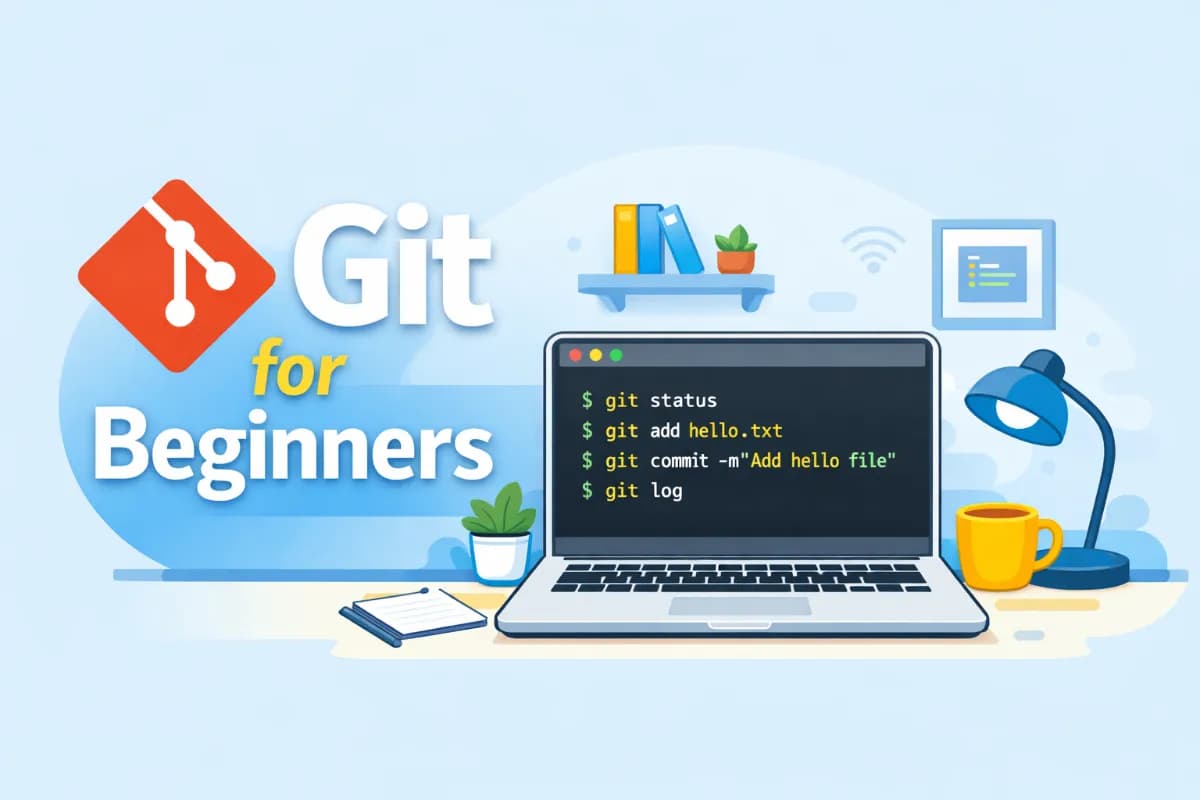
git init
echo "Hello Git" > hello.txt
git status
git add hello.txt
git commit -m "Add hello file"
git log
You just:
- Created a repo
- Created a file
- Staged it
- Committed it
- Viewed history
Conclusion
Git helps you:
- Track code
- Fix mistakes
- Work confidently
- Build professional habits
Start small. Practice daily.
Soon Git will feel simple and powerful.